How to Create WhatsApp Message Templates in Avianya AI (2026): Types, Steps & Approval
Templates are how you message customers at scale on WhatsApp. Here is exactly how to create one in Avianya AI — the four template types, every building block, the submit-for-approval flow, and the rules that get it approved on the first try.
On WhatsApp you cannot message a customer whatever you like, whenever you like. Any business-initiated message — and anything sent outside the 24-hour customer-service window — must use a message template that Meta has pre-approved. Templates are how you send order updates, offers, reminders and OTPs at scale without breaking policy. This guide covers the template types Avianya AI supports, how to create one step by step, and how to get it approved the first time.
Step 1 — Pick the right category
Meta sorts every template into a category, and the category decides both the content rules and the price you pay. Avianya AI supports:
- Marketing — promotions, offers, launches, re-engagement. The most flexible in content, the highest cost, and the one customers can opt out of.
- Utility — transactional messages tied to something the customer is expecting: order confirmations, shipping and delivery updates, appointment reminders, account alerts. Cheaper than marketing.
- Authentication — one-time passcodes (OTP), delivered with a copy-code button and a strict, fixed format.
- Catalog / product — showcase products from your catalog inside a template, useful for commerce and selling inside WhatsApp.
Picking the wrong category — dressing a promotion up as a utility message — is the single most common reason templates get rejected, and it can also mean you are billed incorrectly. Match the category to what the message actually is.
Step 2 — Understand the building blocks
Every template is assembled from the same components. Only the body is required; the rest are optional:
- Header (optional) — a single line of text, or media (an image, video or document), or a location pin. Great for a brand banner or a product image.
- Body (required) — the main message. Add dynamic variables like
{{1}}and{{2}}to personalise with a name, order ID, amount or date. - Footer (optional) — a short static line, e.g. a disclaimer or an opt-out note.
- Buttons (optional) — quick-reply buttons (up to 3, like Yes / No / Track order), call-to-action buttons (visit a URL or call a number), a copy-code button (for OTPs and coupon codes), or a scrollable carousel of product cards each with its own button.
Step 3 — Create the template in Avianya AI
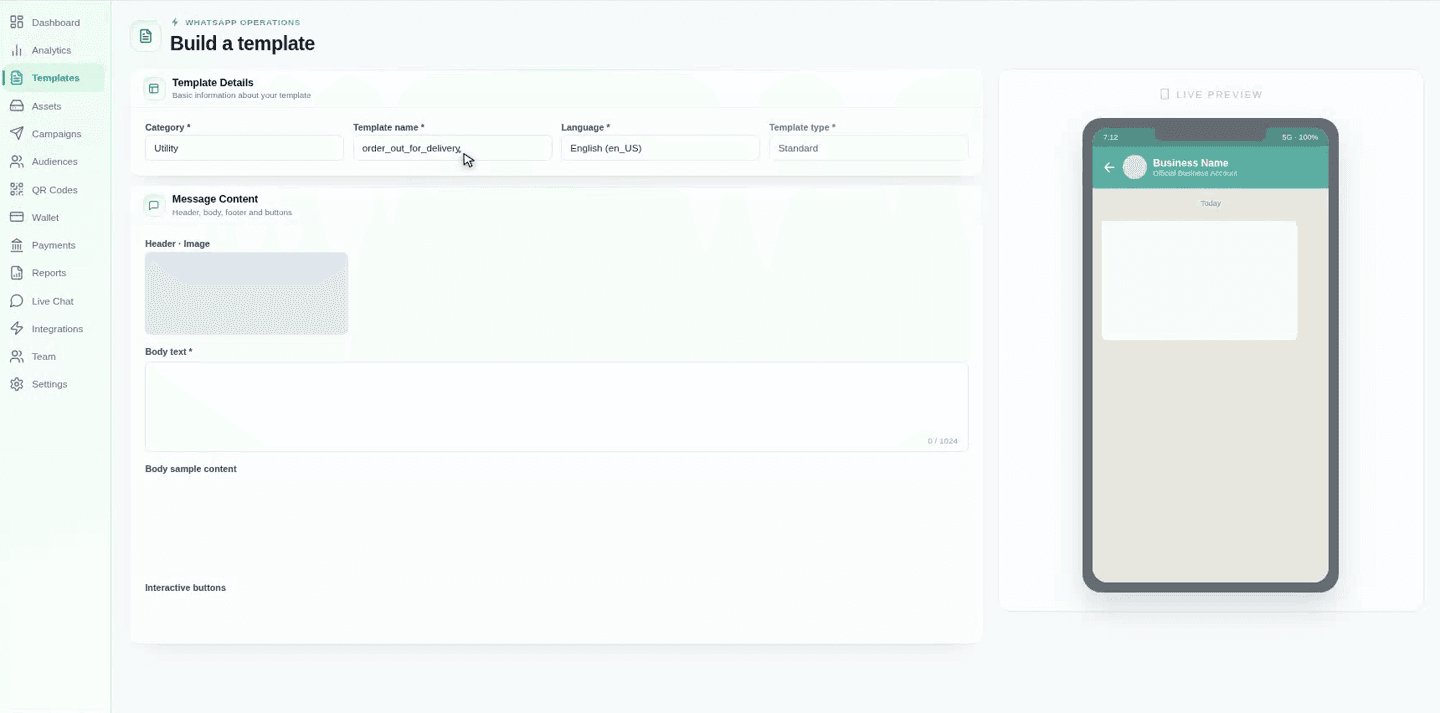
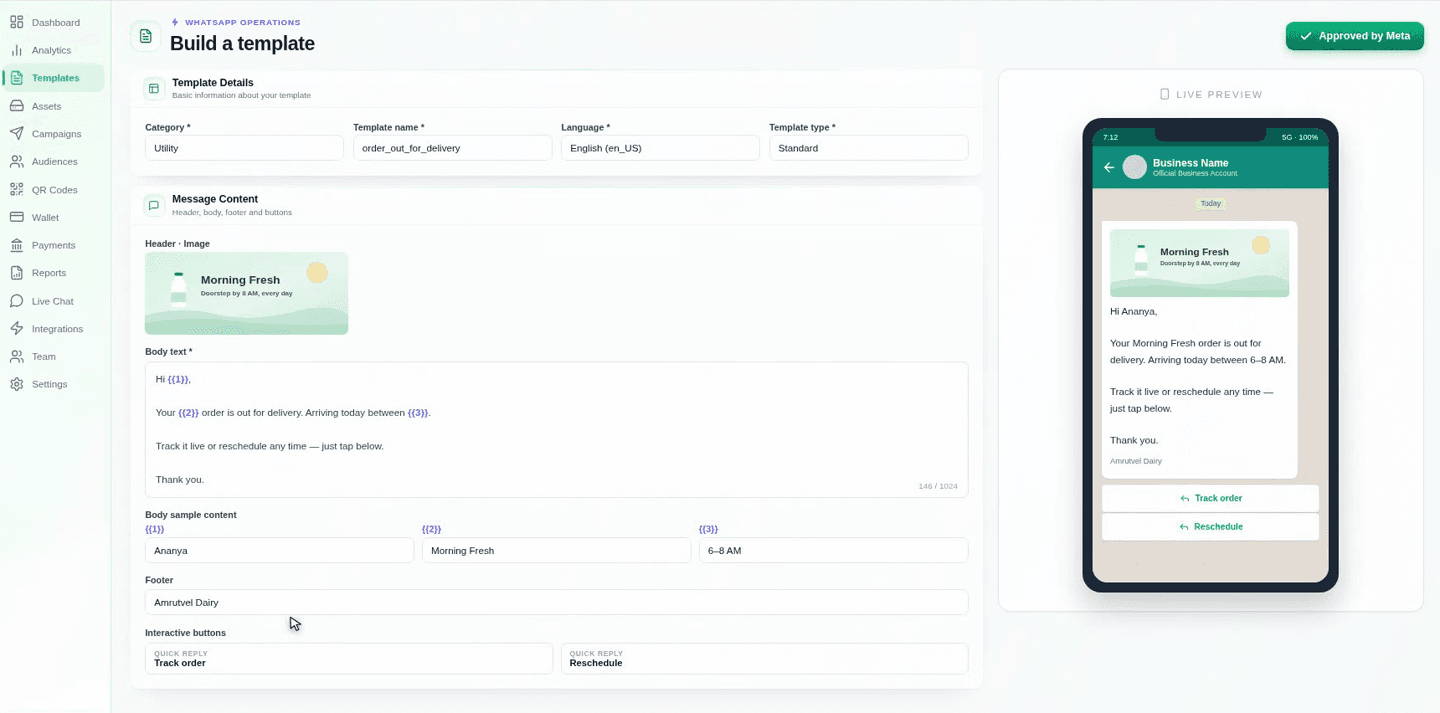
Open Templates from the left sidebar. The builder is titled Build a template: the form is on the left, and a live preview of the customer's phone updates on the right as you fill it in.
Fill in the template details
In the Template Details card, set the Category (Utility, in this example), a Template name in lowercase with underscores like order_out_for_delivery, the Language (e.g. English (en_US)), and the Template type (Standard).
Add a header
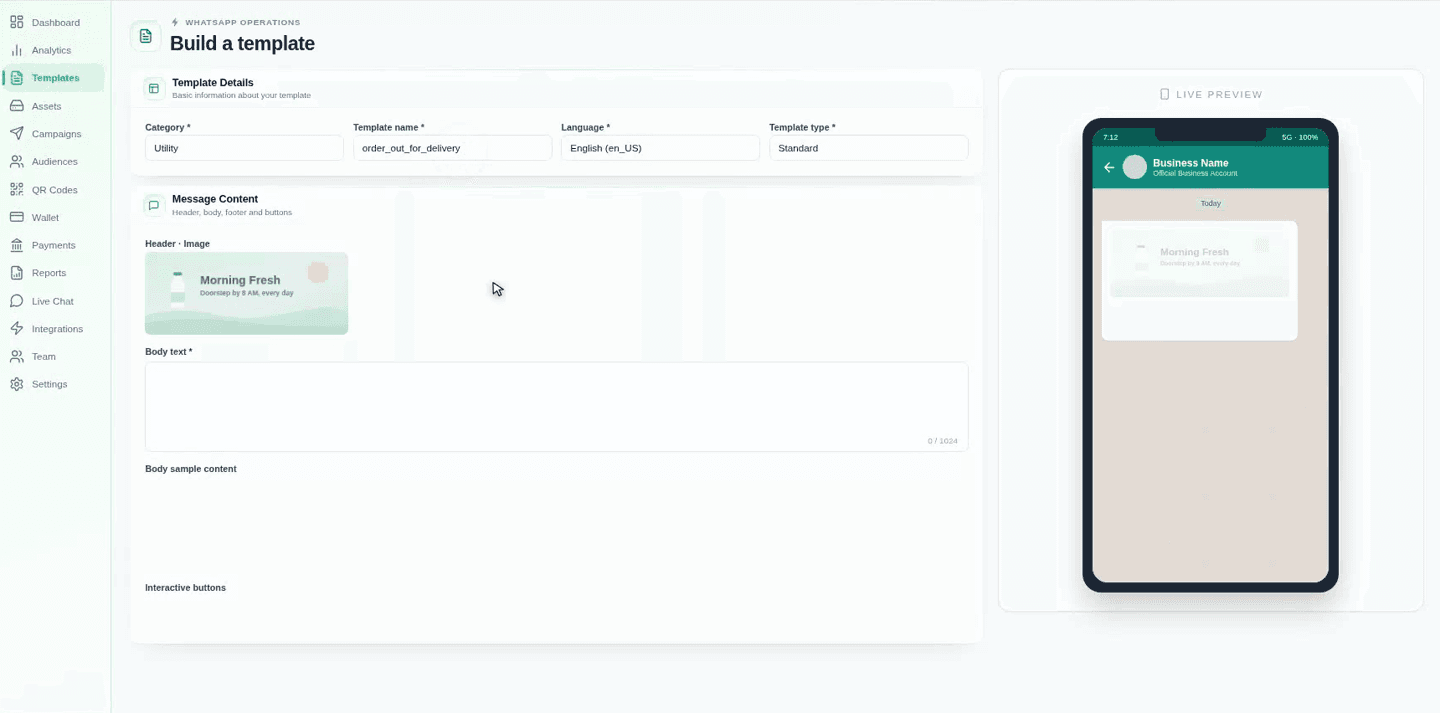
In Message Content, add an optional Header — a line of text or a media file. Upload an image and it appears at the top of the message in the preview.
Write the body and add sample values
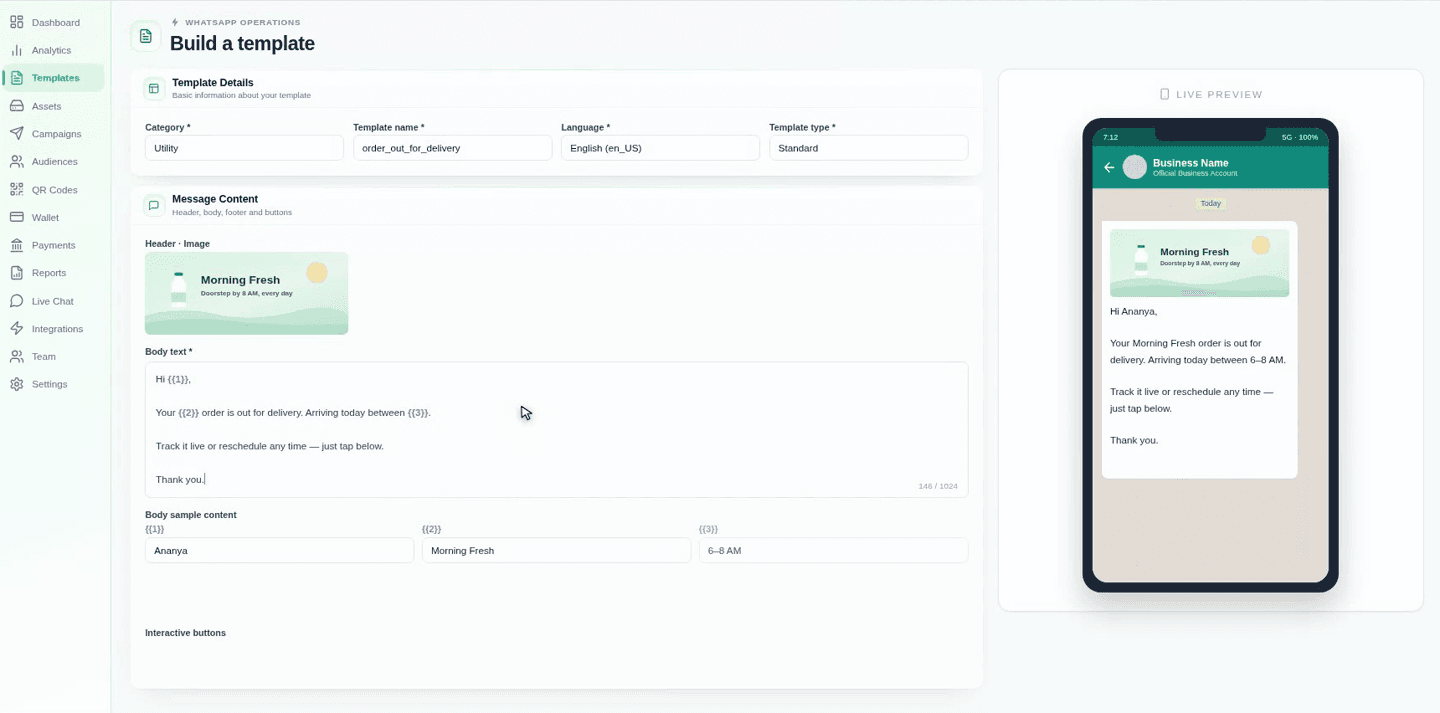
Type your Body text and drop in variables like {{1}}, {{2}} and {{3}} wherever the content changes — a name, a product, a delivery window. Then fill Body sample content with a realistic value for each, so Meta and the preview can resolve them. Missing samples are the number-one cause of rejection.
Add a footer and buttons
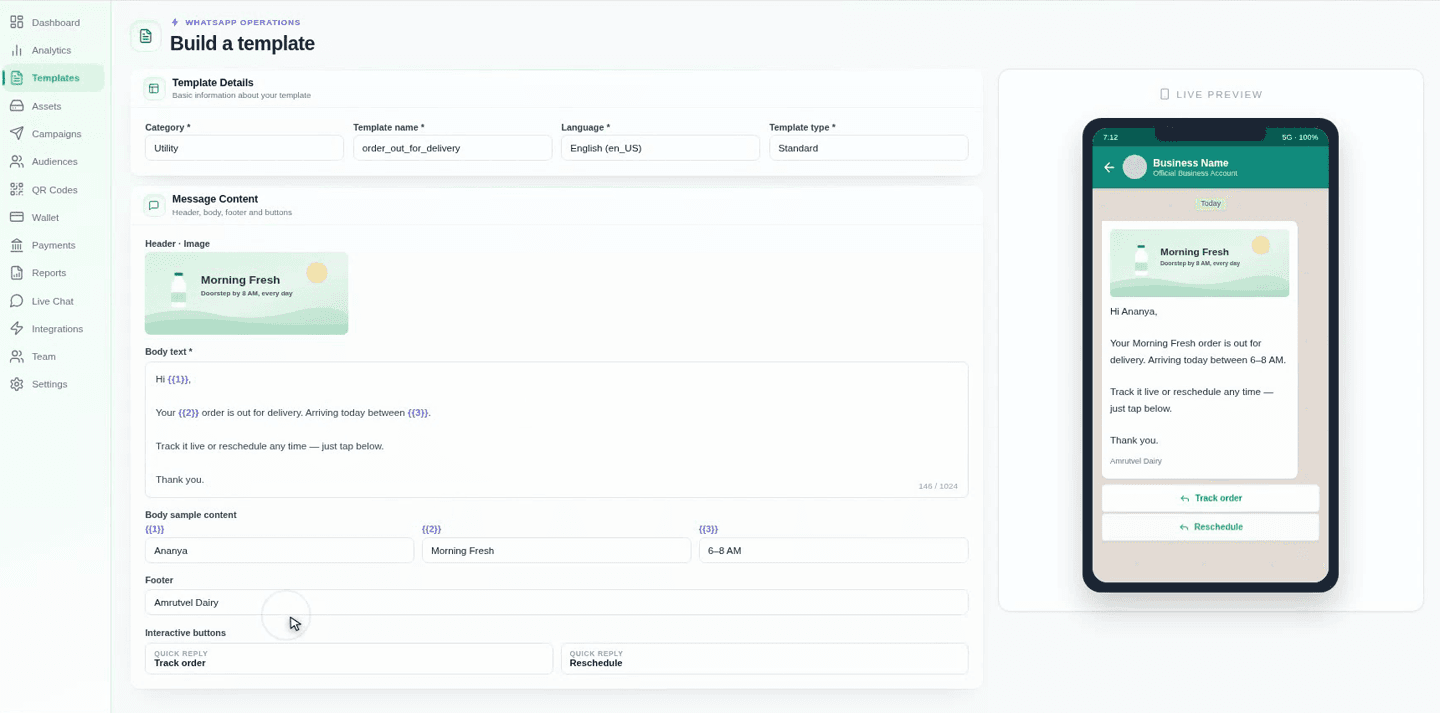
Add an optional Footer line, then Interactive buttons — here, two quick replies (Track order and Reschedule). Quick-reply, call-to-action (visit URL or call) and copy-code buttons all render live in the preview so you can see exactly what the customer taps.
Submit for approval
When it looks right, submit the template. Meta reviews it — usually within minutes, sometimes up to 24 hours — and the status moves to Approved (or Rejected, which you can fix and resubmit). Once approved, it is ready to send from a campaign, broadcast, automation, or the API.
Step 4 — Get approved on the first try
Most rejections come from a handful of avoidable mistakes. Before you submit, check that:
- The content matches the category — no marketing language in a utility template.
- Every variable has a realistic sample value — missing samples are the number-one rejection.
- The body does not start or end with a variable, and never places two variables back-to-back with no text between them.
- URLs are clean and real — avoid link shorteners and mismatched display text.
- There is no prohibited content, and the spelling and grammar are correct.
- Placeholders stay meaningful —
Hi {{1}}, not a wall of empty variables.
A rejected template can be edited and resubmitted straight away, but repeated policy violations can hurt your quality rating — so it pays to get the category and samples right the first time.
From template to campaign
Once approved, a template is reusable across broadcasts, drip automations and the API. Pair it with our broadcast template best practices so every send lands well, and for stores, use catalog templates to sell inside WhatsApp. Avianya AI keeps template creation, approval status, campaigns and analytics in one INR-billed platform — book a walkthrough and we will set up your first templates with you.
Frequently asked questions
WhatsApp only lets you send free-form messages inside the 24-hour window after a customer messages you. Any business-initiated message — and anything sent after that window — must use a message template that Meta has pre-approved. Templates are Meta's anti-spam control: they let you send order updates, offers, reminders and OTPs at scale, but only in formats that have been reviewed and approved.
Try Avianya AI free.
One dashboard for WhatsApp, Meta Ads, RCS, SMS and AI chatbots — no setup fee, no card.